5 Preferences to Configure in STM32CubeIDE After Installing


Whether you have installed or upgraded STM32CubeIDE for a new project, always go through some of the configuration settings and update them from the default. Defaults are usually set to get you compiling as soon as possible. If you are working on code for a project, having a few preferences setup correctly can save you time and frustration later.
Most of the preferences are specific to the workspace but some are also settable for specific projects. Those will be pointed out as they appear. Also, some preferences will require a restart of the program or editor window for the settings to take effect.
Spelling – User Defined Dictionary
A spell checker is basic enough to be forgotten. The spelling preferences are located in [Window]>[Preferences]>[General]>[Editors]>[Text Editors]>[Spelling]. Add a location to your workspace for the spelling dictionary to have the spell checker work for you while coding. Most projects have a unique set of jargon that will be used in the code. For example, a word like ‘Modbus’ is not in the dictionary but is common in industrial software.

Code Analysis
This is a good check for coding standards and little missed items while coding. Perhaps the start of a Continuous Improvement (CI) workflow. Access the preference by [Window]>[Preferences]>[C/C++]>[Code Analysis]. By default, most aren’t checked and I think it should be the opposite, most should be checked. For example: assignment in condition and assignment to itself are not checked by default and seem simple enough that it should not occur in any code. The list is not very long as it would be in a static analysis tool but a good start at automating development to a coding standard.
There might be times when it can be annoying because you have more errors and warnings popping-up and all you wanted was just to see if something worked as a test. One way to solve that would be to change the items severity to a lower one so that the compile works but the notification message is still retained. Additionally, if you don’t want an item checked in certain circumstances, you can configure it by selecting the item and then clicking the 'Customize Selected...' button under the list.
The code analysis preference is also available in the project specific properties and adds additional settings of when it is launched in the project.
To run the analysis right-mouse click on the file or project and select 'Run C/C++ Code Analysis'. This will run the check of the code and show the results in the Problems tab of the IDE. By default, there is no set shortcut key to run the analysis but that it can be updated by modifying the ‘Run Code Analysis’ command in the Keys preference dialog ([Window]>[Preferences]>[General]>[Keys]).

Code Style Formatter
I find that about 95% of files can use the code formatter to format it consistently and quickly. It is much easier to use then adding spaces or moving characters around to get the formatting to be consistent between files.
Modification of the preferences can be done by going to [Window]>[Preferences]>[C/C++]>[Code Style]>[Formatter]. Where it can be setup on a workspace level or by clicking the link at the top right side for the currently active project. Use Ctrl+Shift+F in the editor window to format a file or selection when text is selected.
As far as using the built-in style profiles or your own, I see two options. Using the built-in style profile keeps everything common with Eclipse and uses a generally accepted indentation style convention. The other option of using your own style works best if you are able to maintain the style for the life of the project or you are just particular about how code is formatted. But the later option may require more maintenance in the long run so keep that in mind.

Code Folding
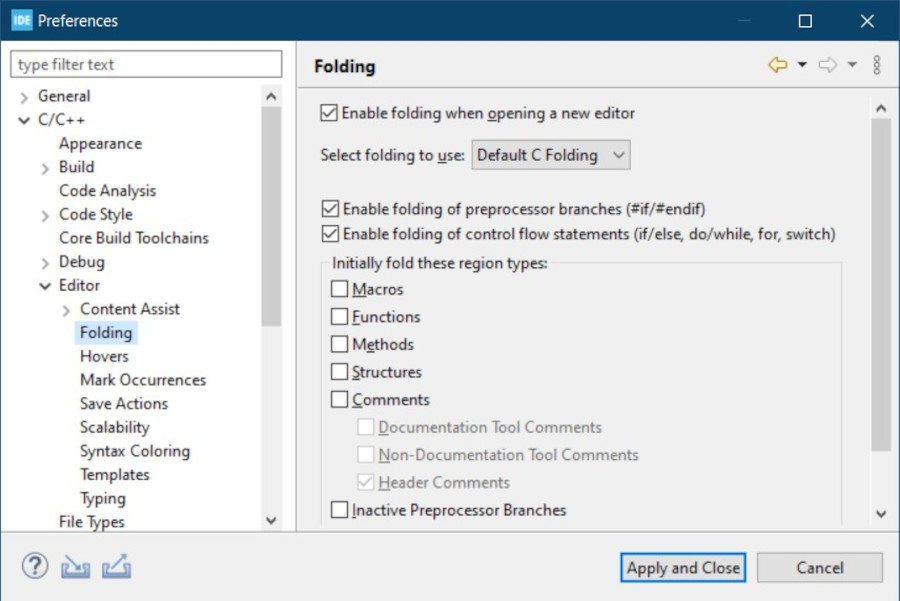
Enable branch folding by going to [Window]>[Preferences]>[C/C++]>[Editor]>[Folding] and check 'Enable folding of preprocessor branches(#if/#endif)' and 'Enable folding of control flow statements (if/else, do/while, for, switch)'. This can be used to keep code not needed folded away by using the ‘+’/’-‘ (fold/unfold) at the front of the text. If you want to have a quick peek, you can move the mouser over a ‘+’ to show a preview of what is folded.
Use the Ctrl+Shift+/ (number pad) to collapse or fold everything in the editor window. Or use Ctrl+Shift+* (number pad) to unfold everything (reset). Using Ctrl+/ (number pad) will toggle the folding.
Code Editor Templates
To quickly generate standard code statements without typing the full embodiment of code, start with the beginning of a statement with a template such as ‘for’. Then use the shortcut keys Ctrl+Space to show the content assist and you can use the same shortcut keys to cycle through the proposals of template, help and default. In this example case, template proposals are one more press of the keys.
Code templates can be added, removed or edited by going to [Window]>[Preferences]>[C/C++]>[Editor]>[Templates]. Once you get a more extensive set of templates you can export or import them to friends and neighbors.

Conclusion
Remember, you can also export the workspace preferences for future workspaces or to share. To do that on the workspace preferences dialog click the export icon on the bottom left of the window.
Setting up the preferences for the workspace or project can save you time and make coding more enjoyable. This is done by adding some automation to checks and improving visual cues.